M-PESA GUIDE
How to Get Your M-PESA Statement in 2026: All Methods ExplainedNeed your M-PESA statement? You can access your M-PESA transaction history through Safaricom's available statement services, including the MySafaricom App. If you need to see your transactions and spending without repeatedly requesting a statement, Shmoney gives you a continuously updated record of your M-PESA activity directly on your phone.
In this guide, we'll explain how to get your M-PESA statement, how to access your transaction history, what information a statement contains, and when Shmoney can give you a faster way to keep track of your transactions.
What Is an M-PESA Statement?
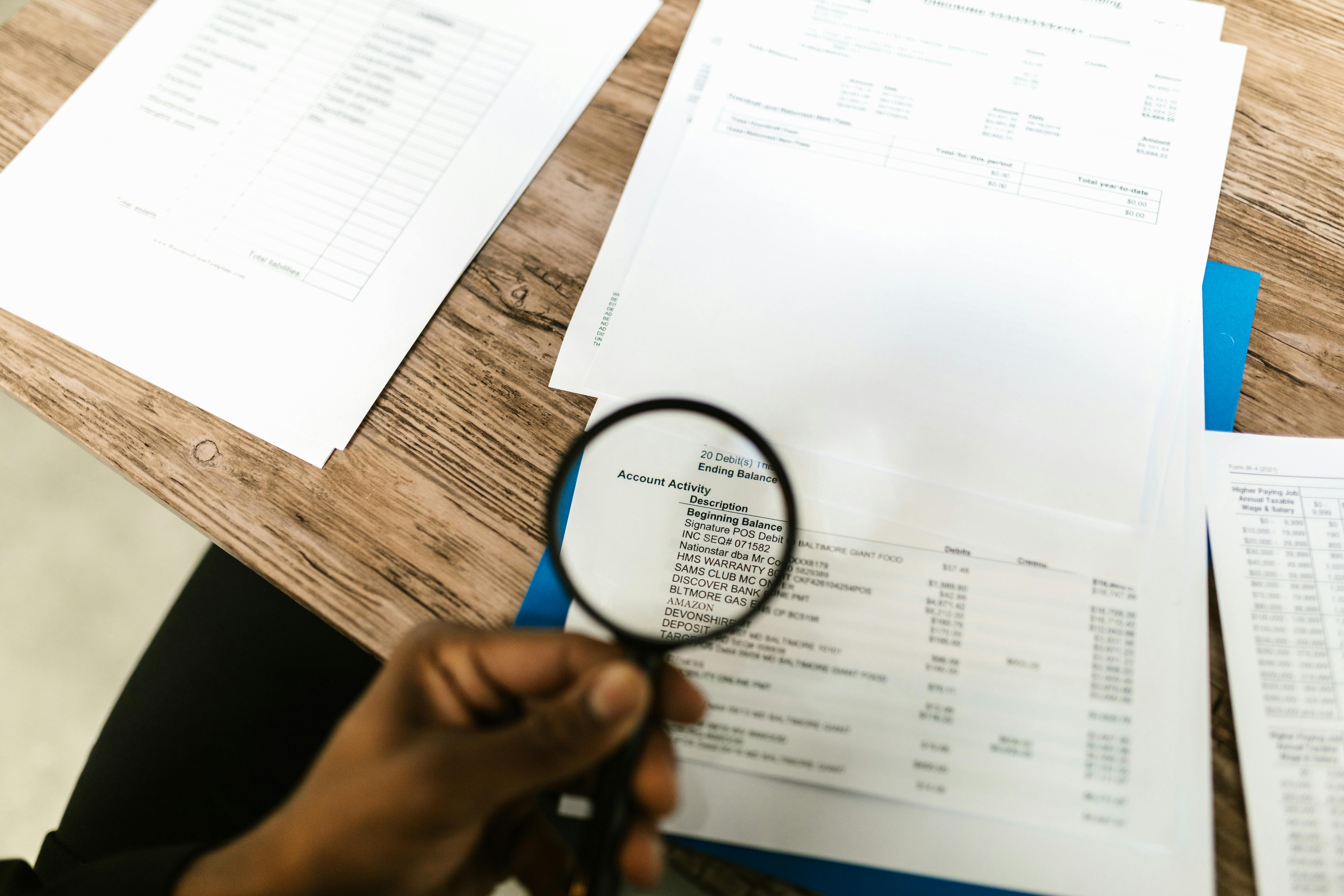
An M-PESA statement is a record of your M-PESA transactions over a selected period. It can help you review money sent and received, payments, withdrawals and other activity on your M-PESA account.
Depending on the statement or transaction view you access, you may see information such as:
- Date and time of the transaction
- Transaction type
- Amount
- Transaction ID
- Sender or recipient information
- Applicable transaction charges
- Your M-PESA balance after the transaction
An official M-PESA statement can be useful when you need a formal record of your transactions, for example when reviewing your finances or providing transaction information to an institution that specifically requests an M-PESA statement.
How to Get Your M-PESA Statement
The exact steps available to you can depend on the Safaricom service you are using. Safaricom's M-PESA Statement Service provides customers with an interactive view of M-PESA activity and options for obtaining full statements for selected periods.
The most useful option for many customers is the M-PESA Statement feature in the MySafaricom App.
Method 1: Get Your M-PESA Statement Using the MySafaricom App
The MySafaricom App provides an M-PESA Statement feature that lets you view your M-PESA activity and request full statements for available periods.
- Install or open the MySafaricom App.
- Log in using your Safaricom number.
- Open the M-PESA section.
- Look for the M-PESA Statement option.
- Select the statement period you need.
- Follow the instructions provided by Safaricom to access or receive the statement.
Safaricom's published M-PESA Statement Service terms describe full statements for 3, 6 and 12 months through the statement service. Availability and the exact options presented can change, so check the current options displayed in the app.
Method 2: Check Your Recent M-PESA Transactions
If you only need to check a recent transaction rather than obtain a formal statement, you may not need a full statement at all.
Your M-PESA transaction messages provide details about individual transactions, while Safaricom's M-PESA statement functionality provides a broader view of your transaction history.
This is useful when you are trying to find something specific, such as:
- A payment you made recently
- Money you sent to someone
- A withdrawal
- A PayBill payment
- A Buy Goods transaction
- A transaction ID
However, checking individual SMS messages becomes difficult when you want to understand your spending over weeks or months.
How to Get Your M-PESA Statement Quickly
If you need an official Safaricom-issued M-PESA statement, use Safaricom's M-PESA Statement Service through the available official channels.
But there is a different problem that a traditional statement does not solve: what if you simply want to see your M-PESA transactions whenever you need them?
You don't necessarily want to request a statement every time you want to know how much you spent, how much you received, or how much you have paid in M-PESA fees.
That's where Shmoney comes in.
Get a Continuously Updated M-PESA Record With Shmoney
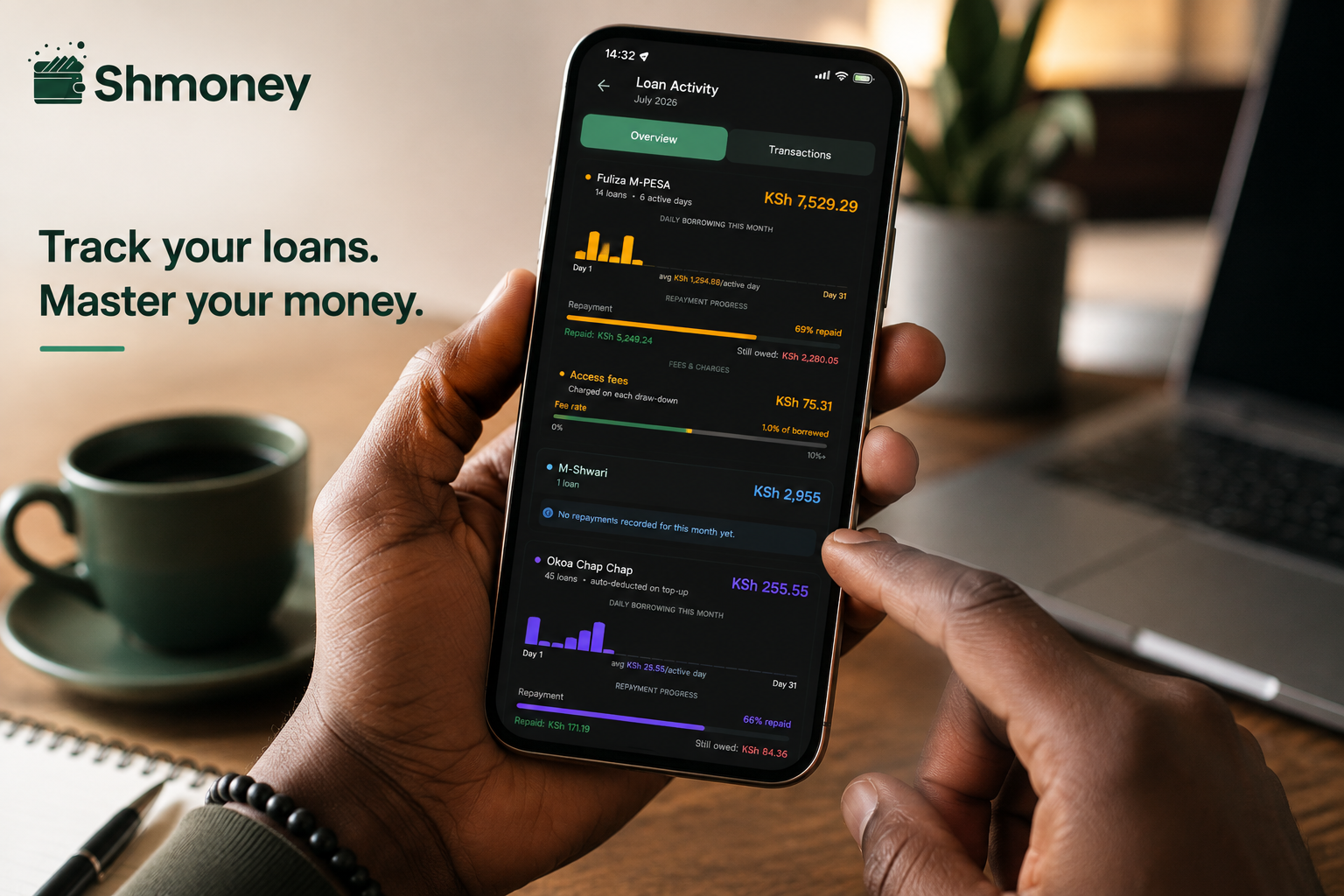
Shmoney automatically reads your M-PESA transaction SMS messages and builds a continuously updated record of your transactions directly on your phone.
Instead of waiting until you need a statement and then going looking for your transaction history, Shmoney keeps your M-PESA activity organized and available as you use your phone.
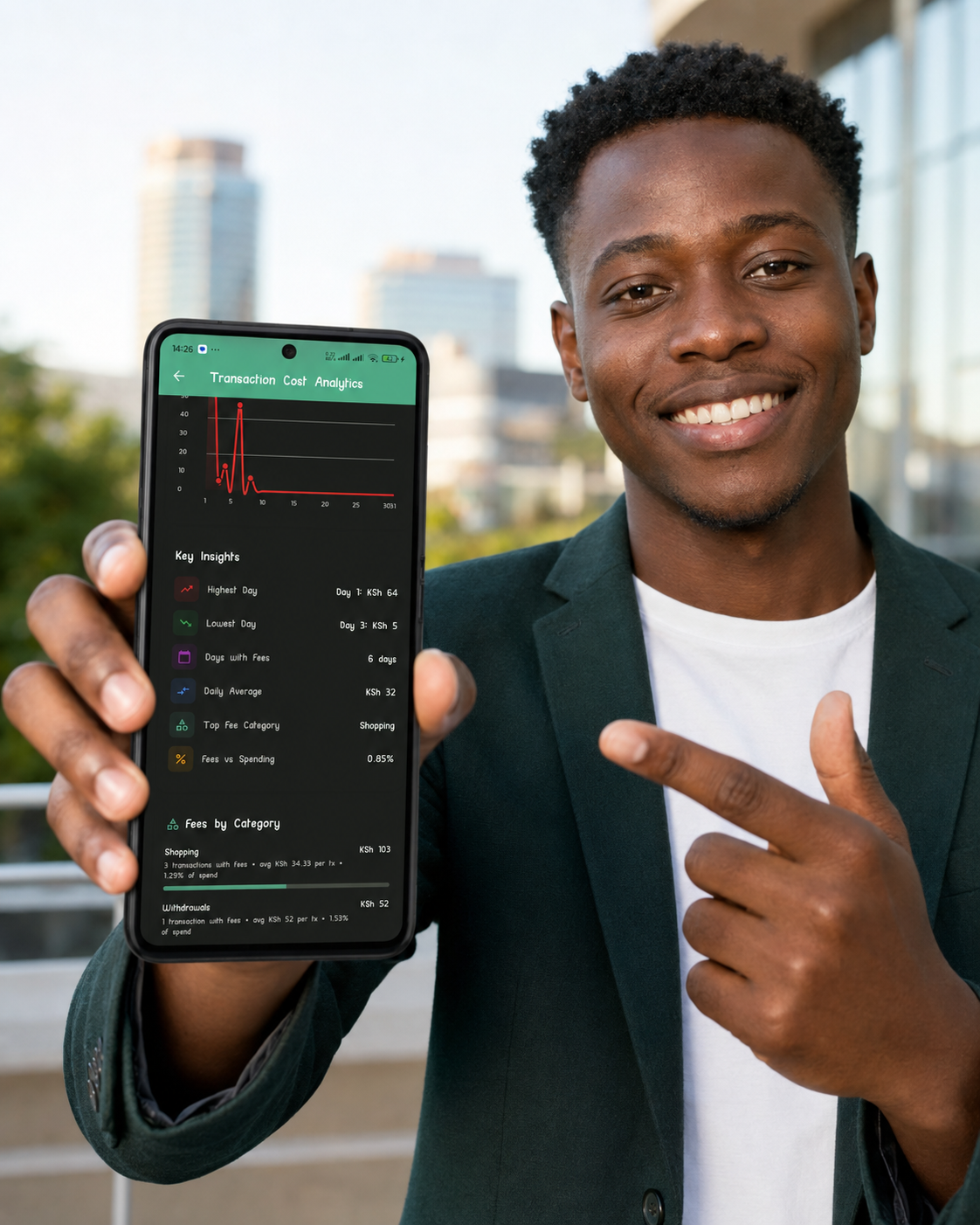
You can see your transactions, spending categories, M-PESA charges and spending patterns without manually entering every transaction.
Think of it this way:
M-PESA's statement service gives you a statement when you need an official record.
Shmoney keeps your own M-PESA financial record available as you go.
Shmoney processes the M-PESA SMS data on your phone, so your transaction data does not need to be uploaded to the cloud for the core tracking functionality.
Can Shmoney Generate an M-PESA Statement?
Shmoney can generate a spending report or statement of the M-PESA transactions it has tracked for a selected period.
This is useful when you want a quick view of your own transaction history without manually going through hundreds of M-PESA messages.
However, there is an important distinction: a Shmoney-generated report is not an official Safaricom-issued M-PESA statement.
If a bank, lender, government agency or another organization specifically requires an official Safaricom M-PESA statement, obtain it through Safaricom's official statement service.
If you simply want to keep track of your transactions, spending and financial activity on an ongoing basis, Shmoney is designed for that purpose.
Shmoney vs an Official M-PESA Statement
The two serve different purposes.
| Feature | M-PESA Statement | Shmoney |
|---|---|---|
| View M-PESA transactions | Yes | Yes |
| Official Safaricom document | Yes | No |
| Continuously updated transaction record | Not the primary purpose | Yes |
| Automatic transaction tracking | No | Yes |
| Spending categories | Limited/raw transaction data | Yes |
| Track M-PESA fees | Transaction-level information | Yes |
| Budget tracking | No | Yes |
| Spending analysis | Requires manual analysis | Automatic |
| Generate your own spending report | Official statement | Yes |
Need an official statement? Use Safaricom.
Want to continuously track and understand your M-PESA spending? That's where Shmoney comes in.
What Can You See With Shmoney?
A raw M-PESA transaction history tells you what happened. Shmoney is designed to help you understand what those transactions mean for your finances.
Automatic M-PESA transaction tracking
Shmoney reads your M-PESA SMS messages and automatically records transactions instead of requiring you to enter them manually.
Spending categories
Transactions can be organized into categories such as food, transport, bills, shopping and other spending areas, helping you see where your money is going.
M-PESA fee tracking
M-PESA charges can look insignificant when viewed one transaction at a time. Shmoney brings those transaction costs together so you can see how much you are actually paying over time.
Spending insights
Instead of scrolling through hundreds of SMS messages, you can use Shmoney's analytics to identify spending patterns and compare your activity over time.
Budgets
You can set spending limits and monitor your progress against your budget using your actual M-PESA activity.
Generate spending reports
Shmoney can generate a report of the transactions it has tracked for a selected period, giving you a convenient way to review your spending.
Why a Statement Alone Isn't Enough to Understand Your Spending
Imagine receiving a statement containing 200 M-PESA transactions.
You can see every transaction, but the statement doesn't automatically answer questions such as:
- How much did I spend on food this month?
- How much did I spend on transport?
- How much did I pay in M-PESA transaction fees?
- How much did I spend compared with last month?
- Which categories are consuming most of my money?
- Am I getting closer to or further away from my budget?
That's the difference between a transaction record and financial analysis.
A statement tells you what happened. Shmoney helps you understand what happened.
When Should You Use an Official M-PESA Statement?
There are situations where an official Safaricom statement is the appropriate document.
Loan applications
If a lender specifically asks for an official M-PESA statement, obtain the statement directly through Safaricom's official service.
Financial documentation
An official statement can provide a formal record of your transaction history when documentation is required.
Transaction disputes
Transaction IDs and transaction details can be important when investigating a payment or resolving a dispute.
Tax and business records
If you use M-PESA for business, transaction records can also be useful when reviewing your financial activity and preparing documentation.
In these situations, use the official Safaricom statement service rather than treating a third-party financial tracking app's report as an official M-PESA statement.
When Is Shmoney More Useful?
Shmoney is more useful when your goal isn't simply to obtain a document but to continuously understand your M-PESA finances.
For example, you might want to know:
- How much you've spent this month
- Where most of your money is going
- How much you're paying in M-PESA fees
- How much you're spending on recurring expenses
- Whether you're staying within your budget
- How this month's spending compares with previous months
You shouldn't have to request a statement every time you want an answer to one of those questions.
Don't Wait for a Statement to Know Where Your Money Goes
Your M-PESA statement is useful when you need a record.
But if you want to keep track of your money every day, Shmoney does the work continuously.
It reads your M-PESA transaction SMS messages, organizes your transactions, tracks your spending and transaction costs, and gives you a clearer picture of where your money is going.
Calculate your spending. Track your transactions. Understand your money.
Frequently Asked Questions About M-PESA Statements
How do I get my M-PESA statement?
You can use Safaricom's M-PESA Statement Service, including the M-PESA Statement feature in the MySafaricom App. Follow the current instructions shown by Safaricom when requesting your statement.
How do I get my M-PESA statement quickly?
For an official statement, use Safaricom's available M-PESA Statement Service. If you simply need to see your transaction history and spending without requesting a statement, Shmoney can maintain a continuously updated record of the M-PESA transactions it reads from your SMS messages.
Can I get an M-PESA statement from the MySafaricom App?
Yes. Safaricom's M-PESA Statement Service is available through the MySafaricom App. The service provides an interactive view of M-PESA activity and options for obtaining full statements for selected periods.
How far back can an M-PESA statement go?
Safaricom's published M-PESA Statement Service terms describe full statements for 3, 6 and 12 months. The exact options available can change, so check the current statement options provided by Safaricom.
Can I see my M-PESA transactions without requesting a statement?
Yes. You can review transaction information through Safaricom's available transaction-history tools. Shmoney also keeps a continuously updated record of M-PESA transactions based on the M-PESA SMS messages available on your phone.
Can Shmoney give me an official M-PESA statement?
No. Shmoney can generate its own transaction and spending reports from the M-PESA transactions it tracks, but these are not official Safaricom-issued M-PESA statements. If an institution specifically requests an official M-PESA statement, obtain it from Safaricom.
Can Shmoney track old M-PESA transactions?
Shmoney can process M-PESA transaction messages that are already available in your phone's SMS inbox. This means you may see historical transactions if their corresponding messages are still on your device. If older messages have been deleted, Shmoney cannot recover those messages from Safaricom.
Does Shmoney upload my M-PESA transactions to the cloud?
No. Shmoney's core M-PESA tracking processes the transaction SMS data locally on your phone. Your M-PESA transaction data does not need to be uploaded to a cloud server for the tracking functionality.
Can Shmoney generate a spending report?
Yes. Shmoney can generate a report based on the M-PESA transactions it has tracked, allowing you to review your spending for a selected period.
Is a Shmoney report the same as an M-PESA statement?
No. A Shmoney report is a financial tracking and spending report generated from transactions tracked by Shmoney. An official M-PESA statement is issued through Safaricom's M-PESA Statement Service.
Related M-PESA Guides
- M-PESA Charges 2026: Full Send, Withdrawal & Fuliza Fee Guide
- Fuliza Charges 2026: Daily Fees, Real Cost & How to Track Them
- M-PESA Charges Calculator
- Fuliza Calculator
Your M-PESA Transactions Are Already Telling a Story
You don't have to wait until the end of the month to find out where your money went.
Shmoney automatically tracks your M-PESA transactions, organizes your spending, monitors transaction costs and helps you understand your financial habits — directly on your phone.
Sources & Last Updated
This guide was updated for 2026. M-PESA services, features and statement availability can change, so verify the latest options through Safaricom's official channels when you need an official statement.
Safaricom's published M-PESA Statement Service terms describe the statement functionality and available statement periods.